Showing posts with label MQTT. Show all posts

Sunday, December 8, 2024

GW Firmware Updates

Recently, there have been a few noteworthy updates to the GW firmware, primarily from the new GW owners. As always, the latest version 1.5.4 is available on the GitHub  releases page.

Here are some key changes:

  • Automatic republishing of zone states to MQTT after reconnecting to the MQTT server. This is useful when updating Home Assistant (HA).
  • The lwIP network library has been updated to stable version 2.2.0.
  • mDNS has been added, both as a client and resolver. The GW is now accessible at http://ohs.local, eliminating the need to search for its DHCP-assigned address.
  • A test alert feature has been added to the web interface, making it easier to verify that all alert paths are properly configured directly from the browser.
  • A new alert path has been introduced. Now, all alerts can be propagated to the MQTT topic /OHS/alert and subsequently consumed in HA.
  • The shell, accessible via USB, now allows for resetting the web admin user to its default settings.


Friday, September 13, 2024

MQTT Homeassistant Auto Discovery

A new version of the gateway firmware (v1.5.0) is now available, offering enhanced MQTT support with the addition of Home Assistant Auto Discovery. As always, the updated firmware image is available on GitHub.

Now, let's take a closer look at what MQTT and Home Assistant Auto Discovery are.

MQTT (Message Queuing Telemetry Transport) is a lightweight messaging protocol ideal for devices that need to communicate in real-time, such as sensors and smart home devices. By implementing MQTT in your burglar alarm system, you enable real-time data transfer between the system and Home Assistant. 

Home Assistant Auto Discovery is a feature that allows Home Assistant to automatically detect and configure devices that support MQTT. This eliminates the need for manual configuration, as Home Assistant will automatically generate entities such as sensors, switches, and binary sensors based on the MQTT messages from your alarm system.

If you're new to MQTT, Home Assistant offers a convenient solution with the Mosquitto Broker add-on. You can easily install it directly from Home Assistant by navigating to Settings > Add-on Store and searching for "Mosquitto Broker." Once installed, head over to the Mosquitto Broker page in the Add-ons section, and click Start to launch the broker. For added security, it's recommended to create a dedicated user (e.g., "mosquitto") with its own password, under which the broker will operate.

Now let's go back to new gateway features. As always they are configurable over the web
interface. Main option to enable Home Assistant Auto Discovery is right on the Setting page as a toggle switch as shown on the picture. Enabling this will create the main MQTT topic for system state, allowing the Home Assistant to see it along with hardware and software version information and link to gateway web configuration page.

Additionally, similar switches are added to all groups and zones. When these switches are enabled, they are automatically propagated to Home Assistant as corresponding entities. This allows you to manage and control these groups and zones seamlessly within Home Assistant, enhancing integration and automation possibilities.

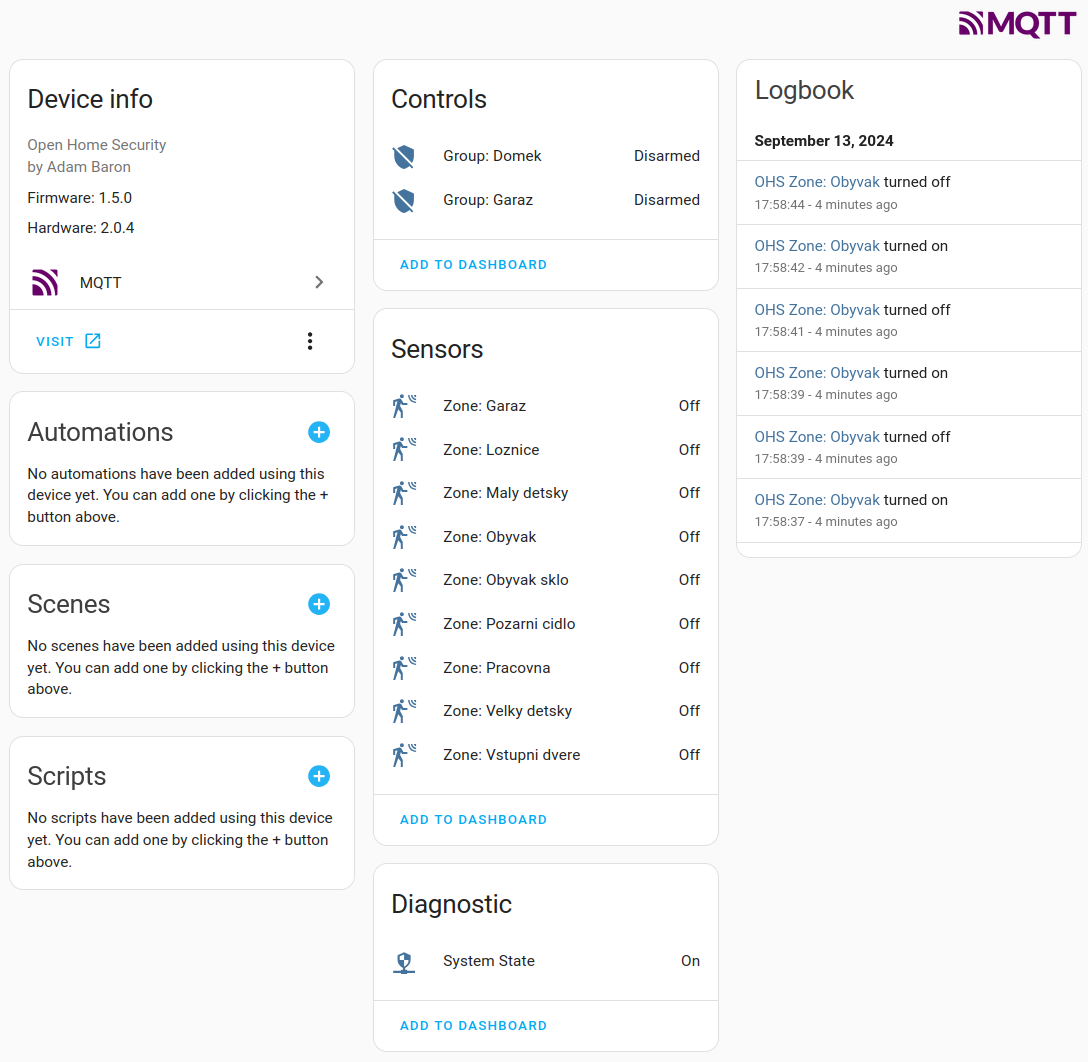
Following picture shows my gateway as new device inside Devices & services for MQTT.

This then can be then added to dashboard, and interacted with as any other Home Assistant device. 

Hope you like it :)

Thursday, July 11, 2024

Home Assistant MQTT Alarm Control Panel Integration

Home Assistant is becoming increasingly popular in DIY home automation projects. To help you integrate OHS groups as alarm control panels, I've put together a small guide. The steps are straightforward:

First, you need to access the main configuration file, located at /homeassistant/configuration.yaml. The easiest way to do this is by using the File editor add-on. Go to Settings, then Add-ons, and click on the ADD-ON STORE button at the bottom right. Type "File" in the search bar, and the first add-on to appear should be the File editor. Install it, start it, and set it to start on boot.

Once the File editor is installed, you can access the configuration file at /homeassistant/configuration.yaml. All local files are conveniently accessible from the Folder icon located at the top left. Edit the file and add the following section at the bottom, making sure to maintain proper YAML indentation:

# OHS Alarm
mqtt:
  - alarm_control_panel:
    name: "Alarm Group House"
    supported_features:
      - arm_home
      - arm_away
    payload_arm_away: "arm_away"
    payload_arm_home: "arm_home"
    payload_disarm: "disarm"
    code_arm_required: false
    state_topic: "OHS/group/1/state"
    command_topic: "OHS/set/group/1/state"

This section can be repeated for each group number you have defined in OHS. Simply change the group number in both the state and command topics to match the actual number in OHS, and adjust the alarm panel name as needed.

After editing, save the configuration and then restart Home Assistant. The restart option is conveniently accessible from the editor menu at the top right under the settings icon.

After restarting, the following panel will be added to the main overview. Here, you can directly arm or disarm the OHS group and see its current state.

Note: Each time you edit or remove the MQTT configuration, you need to restart Home Assistant and also log off and log on again to clear the web cache.

Now as the GW firmware 1.5.0 allows Home Assistant Auto Discovery, using this manual approach is not recommended. 

Sunday, June 20, 2021

Solving lwip troubles.

Some time after the introduction of lwip core locking into ChibiOS port, I started to notice that MQTT still tends to disconnect and connect right after. Same problem as before core locking. This is not very good that all other lwip process seems to work well, but MQTT is keep on reconnecting. Well lwip is a big and complex library to jump in and decode all possible problems, and I decided to start with MQTT client part only. There are quite a few debugging facilities in lwip and I turned on many to start seeing the whole picture.

Nice informative way to see information about lwip is to enable LWIP_STATS. There are many options what to see, like to examine possible memory problems by defining:
#define LWIP_STATS_DISPLAY 1
#define MEMP_STATS 1
#define PBUF_STATS 1
#define SYS_STATS 1

And adding:

#ifdef LWIP_STATS
  stats_display(); // Show lwip statistics
#endif

into while (true) lwip thread.

I started to torture again OHS application fir frequent radio packets resulting into MQTT publish messages. All was fine even with heavy usage of web interface and MQTT subscribe. But after 5 days the statistics started to show an error on MEMP TCP PCB and the in used number of same did not cease even after no other TCP communication then MQTT was used. I increased the number of MEMP_NUM_TCP_PCB to 50 and started again. 5 days later the same problem.

Examining MQTT library or searching forums did not help much. In logs I found that the client receives an empty pbuf which is forcing the client to disconnect. Mosquitto broker then does not see the keep alive periodic packet and also closes the connection. But I started to measure the exact time when the MQTT get out of pbufs, and it a bit surprised me that it happens exactly after 4.9 days. To be precise after 2^32 / 10000 = 429496,7296 seconds. There are timers in lwip that make various time dependent tasks, like removing used pbufs or dhcp. Deep diving into it I found out that the problem is not in lwip, but in ChibiOS port. The sys_now() function does not overflow on u32_t boundary but actually much earlier, causing the timers wait forever.

A patch of the sys_now() function seems to fix the problem completely. It comes with new OHS version 1.3.8 with a few cosmetics enhancements described in particular commits on GitHub. 

It is recommended to upgrade if you use MQTT.


Wednesday, April 7, 2021

Fixing MQTT

There was lately a lot of changes done in gateway MQTT processing. First of all I've introduced a lwip_assert_core_locked() function which present as helper macro throughout lwip network stack, but it is defined as empty. This macro is a quite useful feature, especially if lwip is running multiple sockets. ChibiOS has very functional and well defined bindings to lwip, however lacks the lwip_assert_core_locked() function definition. To benefit from this lock I've added following code to lwipopts.h:

#if LWIP_TCPIP_CORE_LOCKING
void lwip_assert_core_locked(void);
#define LWIP_ASSERT_CORE_LOCKED() lwip_assert_core_locked();
#endif

And the actual function to /arch/sys_arch.c:

#if LWIP_TCPIP_CORE_LOCKING
void lwip_assert_core_locked(void) {
  // If the mutex hasn't been initialized yet, then give it a pass.
  if (lock_tcpip_core == SYS_SEM_NULL) return;
  chSysLock();
  // Ensure that the mutex is currently taken (locked).
  if (chSemWaitTimeoutS(lock_tcpip_core, TIME_IMMEDIATE) == MSG_OK) {
    chSysHalt("TCPIP core is not locked!");
  }
  chSysUnlock();
}
#endif

Then basically you need to wrap every lwip API call with following macros:
LOCK_TCPIP_CORE();
lwip_function();
UNLOCK_TCPIP_CORE();

This helped a lot, since without the locking the gateway after some time was not sending ACK to MQTT broker, and was forced to reconnect every 5 or so minutes.

Second lwip source was updated to latest dev branch, which has some fixes for MQTT in it as well. 

Last, but not least, there are several changes introduced to MQTT thread. The connection/re-connection function was moved there as well from service thread.

All this is is pushed to GitHub as version 1.3.6.

Sunday, January 17, 2021

MQTT subscribe

A new 1.3.1 version of gateway firmware is committed to GitHub which is enabling MQTT subscribe functionality.

Gateway subscribes on topics: /OHS/set/#, particularly parses following 

/group /{#} - index of group {1 .. ALARM_GROUPS}
  /state - allowed commands {disarm, arm_home, arm_away}
/sensor - allowed only for Input nodes
 /{address} - node address like W:2:I:D:1
  /value - float value send to remote node
 

To describe it better for someone new to MQTT.  MQTT is an open OASIS and ISO standard,  lightweight, publish-subscribe network protocol that transports messages between devices. The protocol usually runs over TCP/IP. It is designed for connections with remote locations where a "small code footprint" is required or the network bandwidth is limited.

For example:

/OHS/set/group/#/state topics is able to perform disarm, arm_home, arm_away commands for group index specified as #.

/OHS/set/sensor/{address}/value topics is able to receive float number that is then passed to appropriate node address.

Above subscribe and already existing publish functionality allow direct integration with mobile applications,  logging platforms for sensor data, or Home Assistant:

Monday, December 21, 2020

Adding MQTT to gateway 2.x

MQTT was somehow last step of adding features present in gateways 1.x to gateway 2.x. Now with last version of 1.3 release, already available in GitHub releases, this come to live. For now only publish functions are implemented, but subscribe procedures and skeleton is already prepared. Beware that 1.3 release forces whole configuration to be erased! I suggest to take screenshots of each page before upgrading. I know it is not very convenient, and I will try to implement mechanisms that such future changes will be a bit elegant. That is without the need to reconfigure whole gateway again.

MQTT publish functions are now having their own thread, that is collecting queue of publish request. The thread then pushes one publish a time when system allows it.

The publish structure is a bit different, as it now more relies on given indexes and addresses rather then on names of elements. Main topis is OHS with subtopics:

 /state {On, Off} - Indicates if system is on
 /group
   /{#} - index of group
     /name
     /state {disarmed, arming, armed_home, armed_away, triggered, disarming}
 /zone
   /{#} - index of zone
     /name
     /state {OK, alarm, tamper}
 /sensor
   /{address} - node address like W:2:K:i:0
     /name
     /value

There are other small changes like Nodes tab is now showing value of authentication nodes, that is a name of person who last armed/disarmed this node. Same name is also passed to MQTT sensor value for same node type.

You can test now new 1.3 version with initial MQTT support, but there can be some rough edges.

Saturday, November 5, 2016

MQTT functions

The MQTT portion of gateway is now supporting following:
  • Publish of any sensor that is connected to it.
  • Subscribe and pass messages to any input.
  • Subscribe to send SMS messages to contacts listed in contact list.
There is simple panel, screenshot on right picture, allowing you to set the MQTT server IP address and it's port, and enable or disable this function globally.

This means that if you have a MQTT gateway running, you can setup further any automation you like. There can be:
  • Domoticz or any Home Automation System connected, all of them allows MQTT.
  • Any mobile device gateway for MQTT like MQTT dashboard on Android. Where you can in minutes create buttons, dials, or switches to trigger actions on your nodes, like in the picture on left.
  • NodeRed an excellent piece of software for more advanced automation system. I use it for logging sensor values to database.
MQTT topic for subscribe is: OHS/#
And gateway listens on: OHS/In/#